> For the complete documentation index, see [llms.txt](https://nuflorist.gitbook.io/nuflorist/llms.txt). Markdown versions of documentation pages are available by appending `.md` to page URLs; this page is available as [Markdown](https://nuflorist.gitbook.io/nuflorist/addons/creating-addons.md).
# Creating Addons
## Access the addons section:
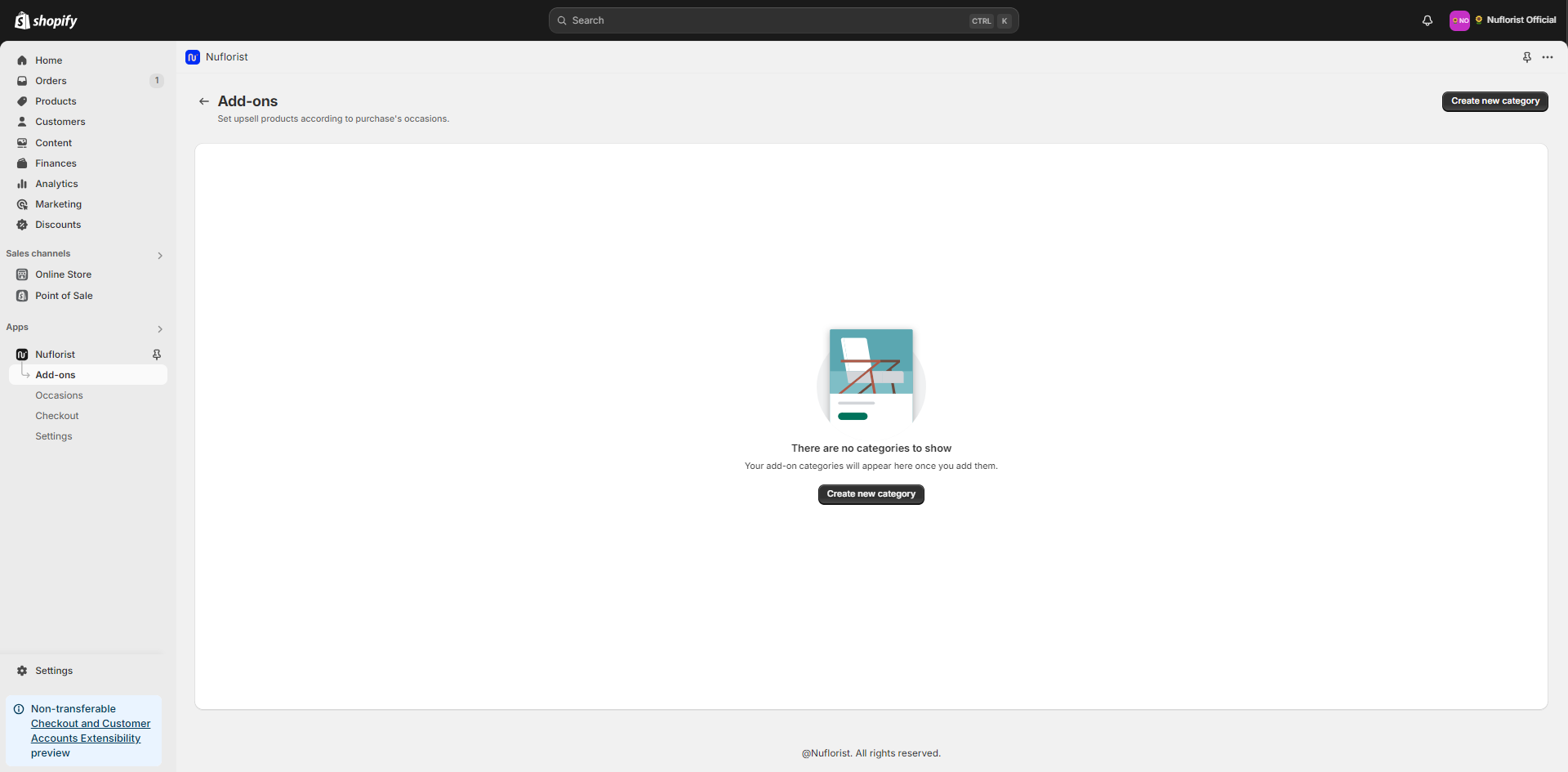
Open the NuFlorist app on your Shopify store.
Navigate to the addons section from the main dashboard.
## Create a New addons Category:
If this is your first time creating an addons category, you will see a blank screen with an option to create a new category. Click on the "Create New" button.
## Enter Category Details:
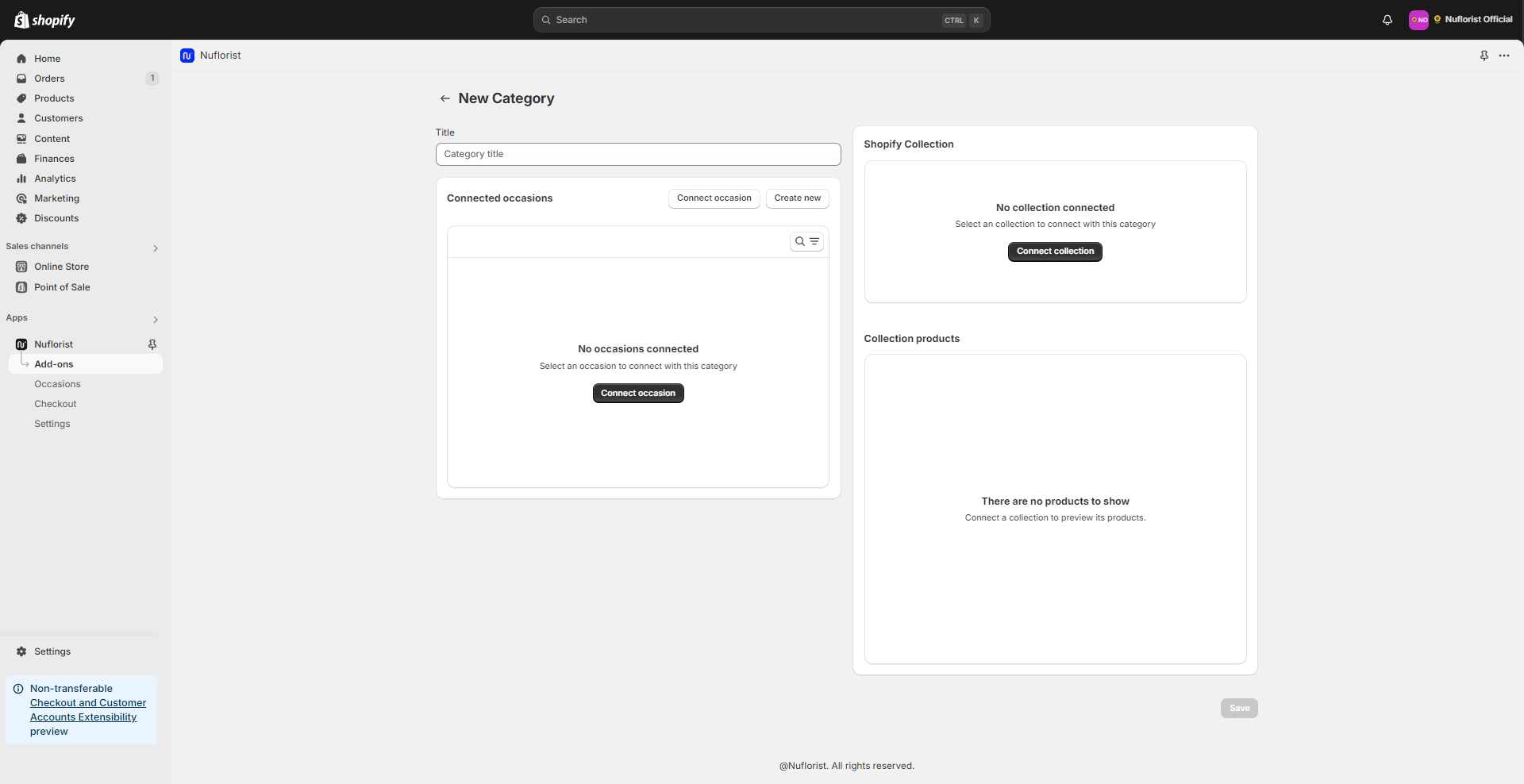
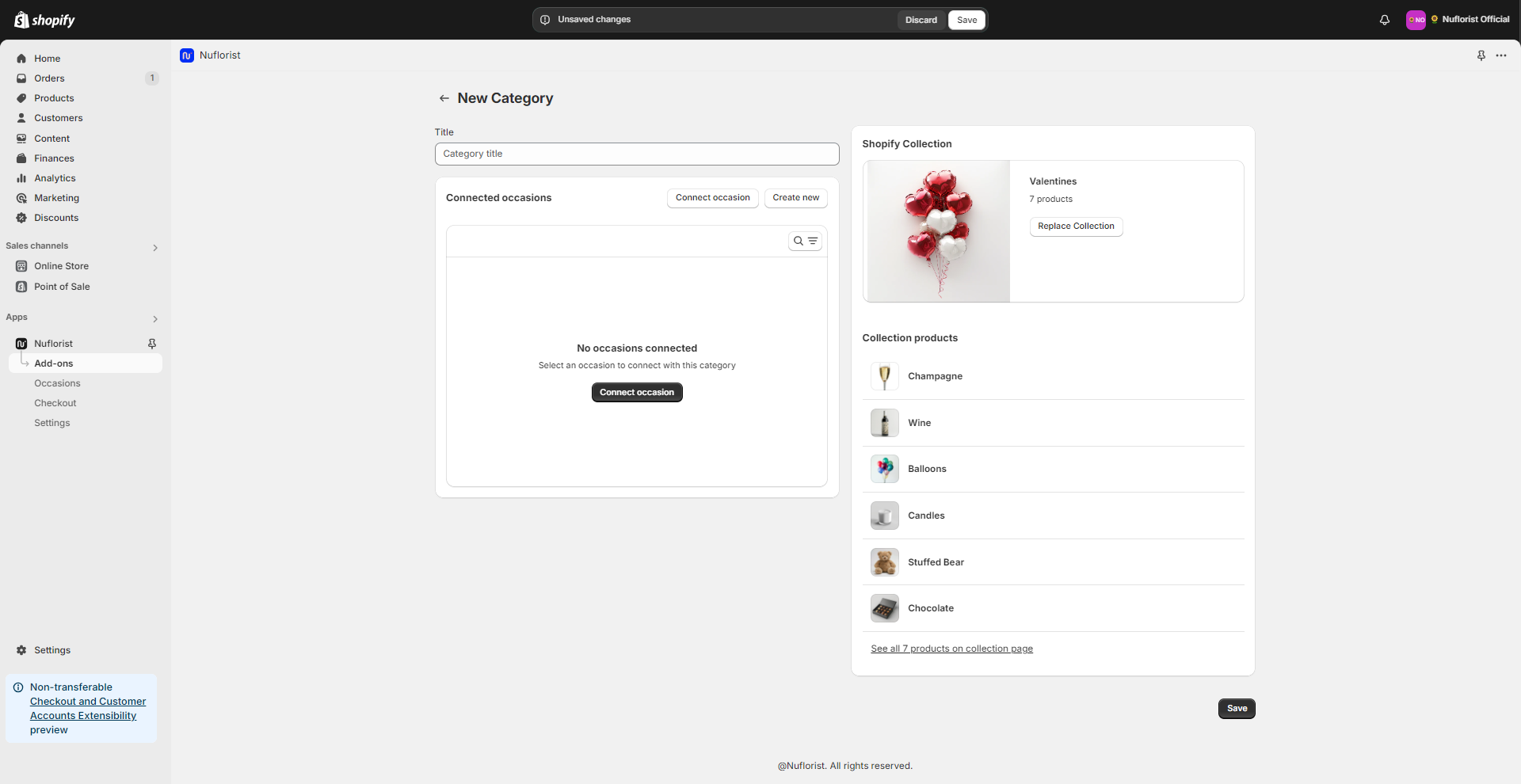
A new window will pop up with fields to fill in. Start by entering a title for your addons category. This title will help you and your team identify the category easily but will not be visible to your customers.
{% hint style="info" %}
Make the title descriptive enough to understand what products are included, such as "Valentine's Day Gifts" or "Birthday Extras."
{% endhint %}
## Connect a Shopify Collection:
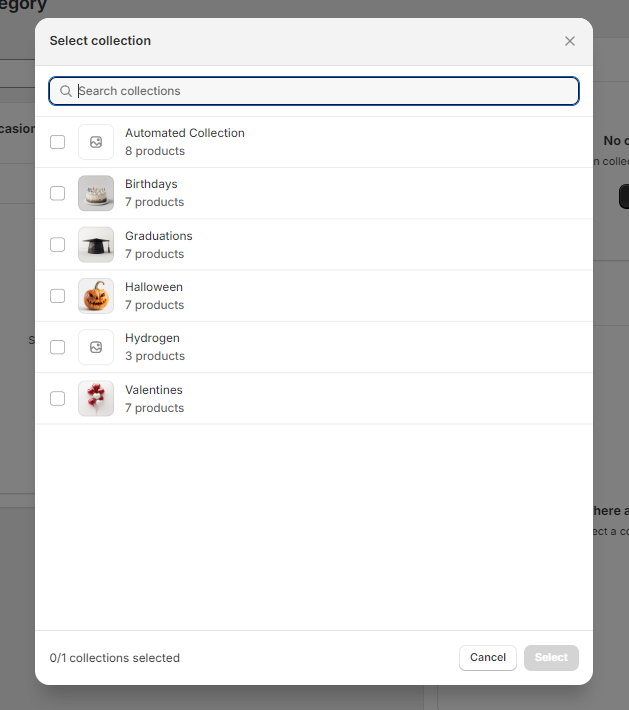
Next, you need to link this category to a Shopify collection. This is important because the addons products must be organized into collections within your Shopify store.
Ensure you have already created a collection in Shopify with the products you want to include in this addons category. For example, if you're creating an addons category for "Chocolates and Wine," make sure you have a collection with these products in your Shopify store.
Select the Shopify collection from the menu.
## Connected occasions
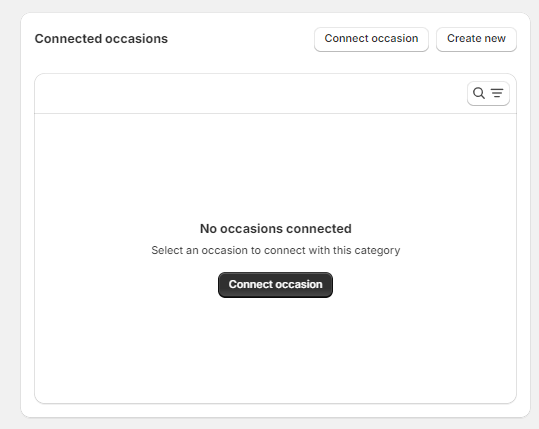
If you already have a created occasion, you can connect it here. If you’re starting out with the app, just leave it blank.
You can go back and connect occasions here later when it’s needed or even connect this created category to the occasion itself.
## Save the Category
Once you have filled in all the necessary information, click on the "Save" button to save your new addons category.
{% hint style="info" %}
Your new category will need to be connected to an occasion to show on your live website.
{% endhint %}