> For the complete documentation index, see [llms.txt](https://nuflorist.gitbook.io/nuflorist/llms.txt). Markdown versions of documentation pages are available by appending `.md` to page URLs; this page is available as [Markdown](https://nuflorist.gitbook.io/nuflorist/getting-started/installation.md).
# Installing NuFlorist on Shopify
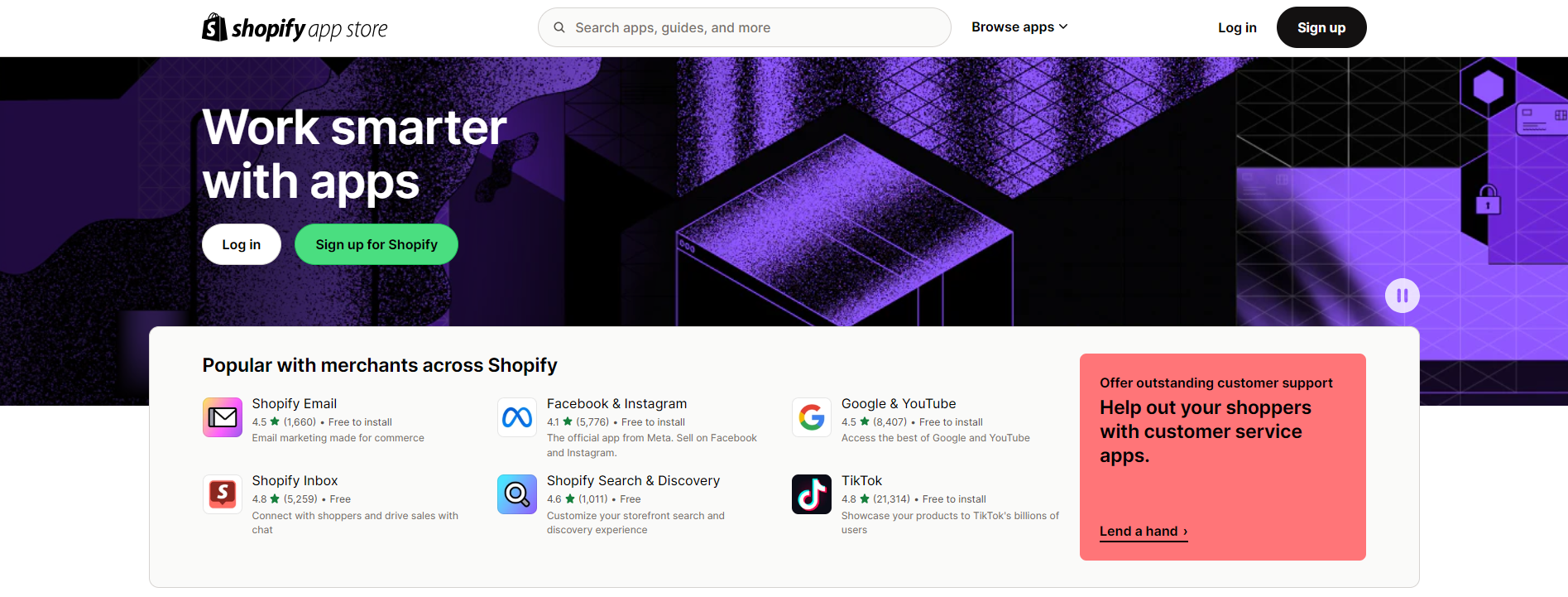
Access the Shopify App Store: You can find this by clicking on “Apps” in the left-hand menu and then selecting “Visit the Shopify App Store.”
{% hint style="info" %}
{% endhint %}
Search for NuFlorist: In the Shopify App Store, use the search bar to look for “NuFlorist.” When you find the app, click on it to view more details.
## Add the App
On the NuFlorist app page, click the “Add app” button. This will begin the installation process. You might need to confirm the installation by clicking “Install app” on the next screen.
## Authorize Permissions
NuFlorist will request permission to access certain data and features of your Shopify store. Review these permissions and click “Authorize” to proceed. This step is necessary for the app to function correctly.
## Configure Basic Settings
Once the app is installed, you’ll be taken to the NuFlorist dashboard within your Shopify admin. Here, you can start configuring the basic settings of the app. This includes setting up your store’s delivery rules, add-ons, and occasions. The onboarding guide should help you with this process.