> For the complete documentation index, see [llms.txt](https://nuflorist.gitbook.io/nuflorist/llms.txt). Markdown versions of documentation pages are available by appending `.md` to page URLs; this page is available as [Markdown](https://nuflorist.gitbook.io/nuflorist/product-widget/install-widget-on-shopify.md).
# Install widget on Shopify
You need to enable the widget in your Shopify store to showcase your customizations for occasions and addons in the NuFlorist app. Here’s a step-by-step guide to help you through the process.
## Go to Theme Editor
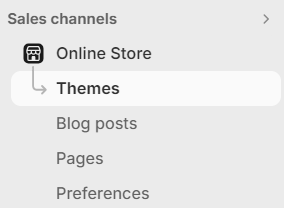
### Navigate to the Online Store
In the left-hand menu, click on "Online Store."
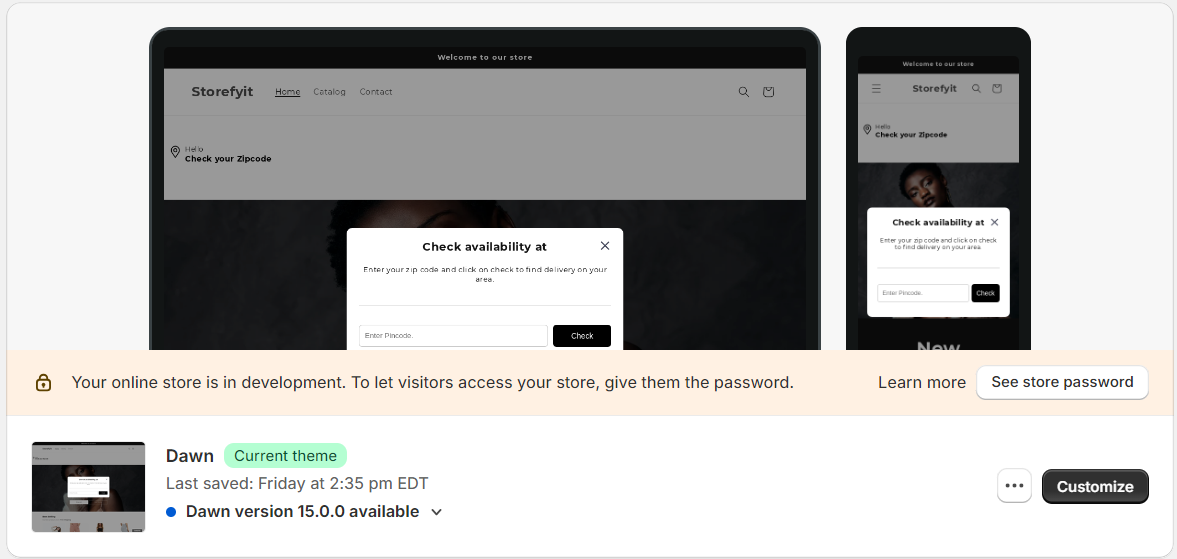
### Themes
Under the "Themes" section, find your current theme and click on "Customize.
### Add the widget
#### Select the Page
In the theme editor, go to the product page where you want to add the widget. Usually under Products > Default Product
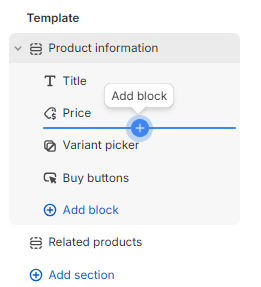
#### Add Section
Click on "Add section" or "Add block" under product information. The ideal placement is above your “Buy buttons” so your customer can select the occasions before proceeding to checkout.
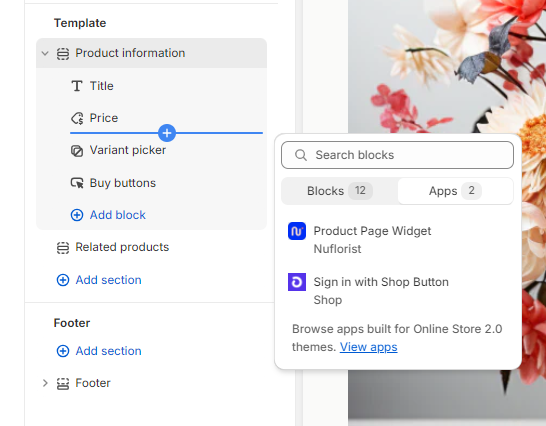
#### Find NuFlorist widget
Look for the NuFlorist widget in the list of available sections under the “Apps” tab. Click on it to add it to your selected page.
{% hint style="warning" %}
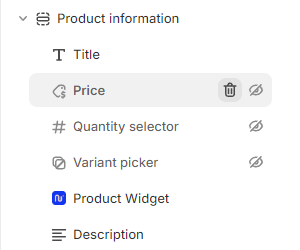
NuFlorist' s **Product Widget** is only compatible with its own **Price**, **Variant Picker**, **Quantity Picker** (optional) and **Buy button** (required). In order to use the widget, you must remove your theme's equivalents.
{% endhint %}
Hide or delete "Price", "Variant Picker", "Quantity Picker" and "Buy Buttons"