> For the complete documentation index, see [llms.txt](https://nuflorist.gitbook.io/nuflorist/llms.txt). Markdown versions of documentation pages are available by appending `.md` to page URLs; this page is available as [Markdown](https://nuflorist.gitbook.io/nuflorist/cart-widget/configure-product-not-available-error.md).
# Configure Product Not Available Error
To configure the custom message shown when a product is not available for delivery, follow these steps:
{% stepper %}
{% step %}
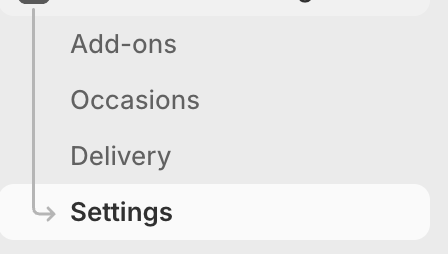
### Go to the Settings page
Navigate to the main **Settings** page from your dashboard.
{% endstep %}
{% step %}
### Open the Delivery Settings accordion
Locate and click on the **Delivery Settings** accordion to expand its contents.
{% endstep %}
{% step %}
### Find the Product Not Available Error Section
Look for the **Product not available error** section within the Delivery Settings.
{% endstep %}
{% step %}
### Click the Configure Button
On the right side, click the **Configure** button to open the configuration screen.
{% endstep %}
{% step %}
### Set Your Custom Message
By default, the message is **“Products not available for delivery”**. Enter a new message here if desired. Do not leave it empty, or the widget will display incorrectly.
{% endstep %}
{% step %}
### Save Your Changes
Once you’re satisfied with your message, click Save to confirm your updates.
###
{% endstep %}
{% endstepper %}