> For the complete documentation index, see [llms.txt](https://nuflorist.gitbook.io/nuflorist/llms.txt). Markdown versions of documentation pages are available by appending `.md` to page URLs; this page is available as [Markdown](https://nuflorist.gitbook.io/nuflorist/checkout/dates-and-time-block.md).
# Dates and time block
{% hint style="warning" %}
To customize your checkout process and allow customers to select delivery dates and times, you’ll need to be on **Shopify Plus**. This gives you the ability to edit the checkout, which is necessary for integrating the Nuflorist app’s delivery options.
{% endhint %}
Edit the date and time block in the NuFlorist app to allow your customers to choose the specific date and time they want their flower arrangements to be delivered by. You can also set padding hours to prepare your products
## Navigate to checkout
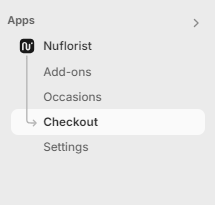
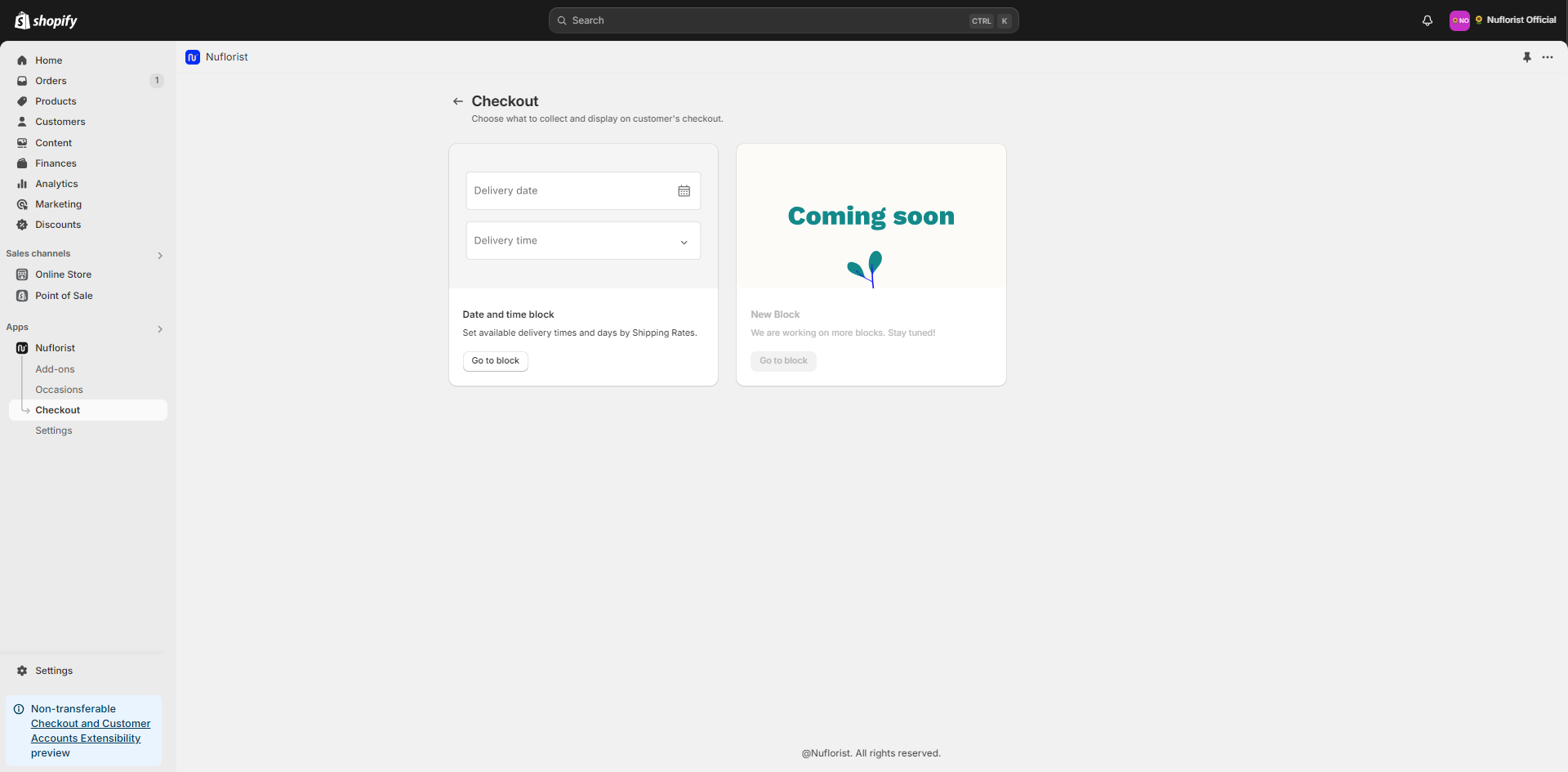
1. From the main dashboard, find and click on the "Checkout" tab.
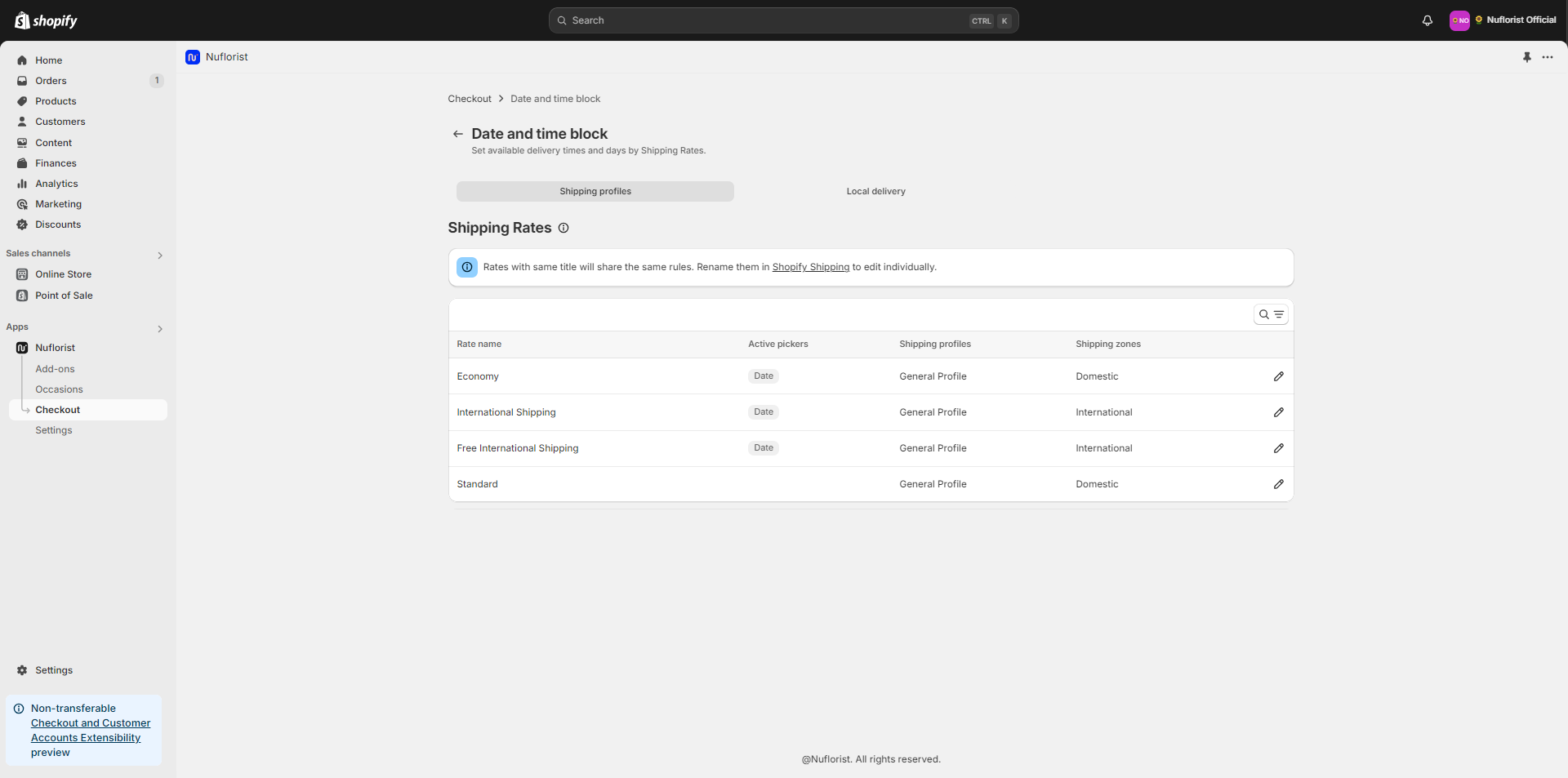
2. On the checkout screen, you’ll see a section called "Date and time block". Click on it to see a list of the shipping rates you can edit.
## Edit Shipping Profiles
Your settings will be related to each shipping profile. You can have a smaller padding time needed for local delivery or not be available for other state deliveries on Friday, for example.
This is why you can customize all of them individually.
Choose between 2 main categories being shipping profiles for all your generated shipping rates or local delivery to setup your configurations locally.
## Available settings
Here you can edit your available and unavailable times, as well as padding times and checkout options. Let's go through each of them to see how it works.
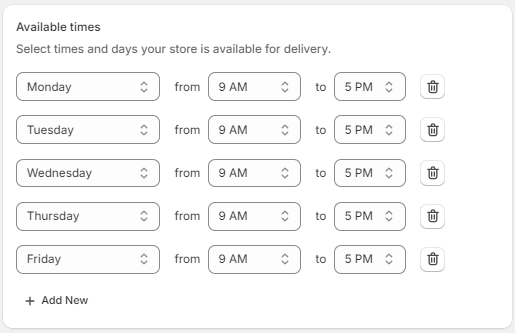
### Available times:
Select the times and days your store is available for delivery. If you work on business days from 9 am-5 pm, you'll need to add all of these days from Monday to Friday.
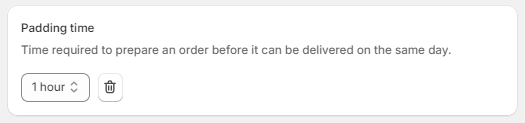
### Padding time
Padding time is the time needed to prepare your products if it needs to be delivered on the same day.
Select the amount of hours needed or just delete the padding time if you can make quick deliveries for this shipping rate.
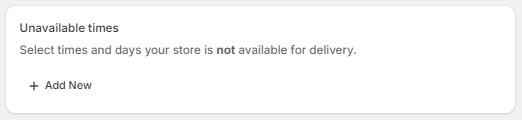
### Unavailable times
If your store closes on the middle of the day for lunchtime or if you can't accept more orders for this shipping rate for the next days, you can set unavailable times.
It'll always override the available times and make sure that you don't have customers asking for orders when you're not able to delivery.
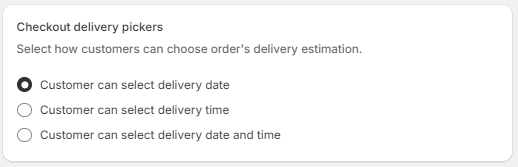
### Checkout delivery pickers
This section allow you to select which pickers you want your costumers to choose from. You can select between 3 options, being:
* Customer can select delivery date
* Customer can select delivery time
* Customer can select delivery date and time
Choose the one that aligns better with your store
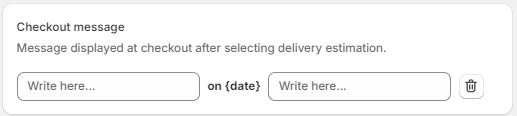
### Checkout message
If you want to customize the message that will be shown to your user at the checkout process, you can do that by editing the text in this section. It already has a default message, so you can edit only if you want a custom experience like:
\[Your new experience will be delivered] on {date} \[Thank you!]